
How to Build a Shared-Kiosk Work Order Workflow That EVS and Maintenance Both Actually Use

There is a specific kind of operational failure that shows up repeatedly in SNF survey deficiencies, and it has nothing to do with whether the work actually got done. The problem is that two teams, EVS and maintenance, both touched the same kiosk, completed tasks on overlapping schedules, and still managed to produce documentation that looks incomplete, contradictory, or simply missing when a surveyor pulls the logs. The kiosk was there. The staff were trained. The work orders existed. And yet the documentation gap opened anyway, because nobody designed the workflow for the reality of shared use.
This guide is about fixing that, step by step. It covers how to structure a shared kiosk work order system that EVS and maintenance staff will actually use consistently, how to prevent the documentation collisions that happen when two teams share one interface, and how to build the kind of contemporaneous, auditable records that close the gap between work completed and work proved. Every step is written for the people who own this problem: maintenance directors, EVS supervisors, and the administrators who answer for it during an unannounced CMS visit.
What You Need Before You Start (Prerequisites and Tools)
Before configuring a single work order template or assigning a single login, get the foundational layer right. A shared-kiosk workflow built on a weak foundation will generate the same documentation gaps as the paper system it replaced, just in digital form.
Understand Your Regulatory Baseline
Every SNF operates under a specific combination of federal and state life safety requirements. On the federal side, CMS survey protocols for environment of care establish the documentation expectations your K-tag exposure will be measured against. On the state side, your licensing agency may impose additional inspection frequencies, record retention windows, or staff credentialing requirements for specific tasks.
Before you build any workflow, map the recurring tasks that your facility is obligated to document. This typically includes: fire extinguisher inspections, emergency generator tests (including monthly load tests and annual transfer switch checks), sprinkler system inspections, fire drill records with staff counts and shift coverage, eyewash station verifications, HVAC filter changes, and a range of EVS-owned tasks like cleaning logs for isolation rooms or high-touch surface protocols. The NFPA 101 Life Safety Code and NFPA 99 are the primary federal references for the maintenance side of this list.
Document which tasks are owned by maintenance, which are owned by EVS, and which are legitimately shared. That ownership map becomes the skeleton of your workflow.
Hardware and Software Prerequisites
A shared kiosk setup requires a fixed, accessible device, typically a wall-mounted tablet or a dedicated workstation positioned where both teams naturally pass during their shifts. The device should be in a location that does not require either team to go out of their way to log a completion. Kiosks placed in a back office get used during office hours. Kiosks placed near the EVS supply room or the maintenance shop get used during the shift.
Your work order management software needs to support at minimum: role-based login (so EVS and maintenance tasks appear separately by default), time-stamped completion logging, photo or document attachment capability, and an escalation path for open or overdue items. If your platform also includes a mobile work order management option, configure it in parallel with the kiosk from day one. Staff who are away from the kiosk should be able to complete a work order on a mobile device without creating a duplicate or orphaned record.
Estimated setup time for prerequisites: 4–8 hours across two sessions, depending on how clearly your regulatory task inventory is already documented.
Step 1: Map Every Recurring Task to a Single Responsible Role
Estimated time: 3–5 hours. This is the most important step in the entire process.
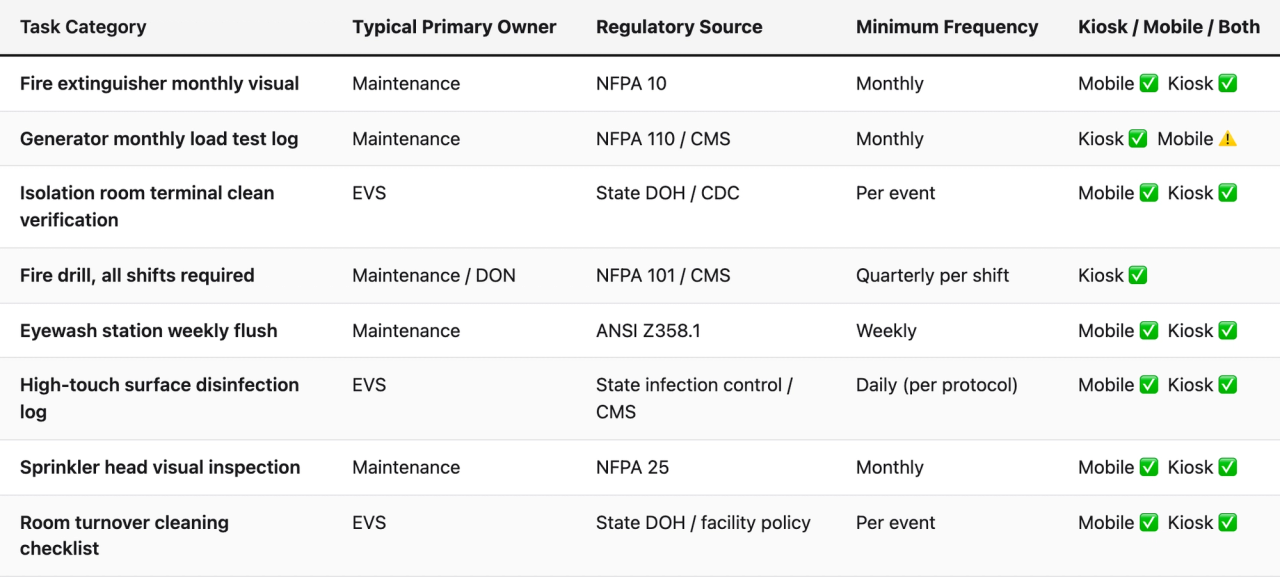
The most common reason shared-kiosk workflows fail is ambiguous ownership. When a task appears in both the EVS queue and the maintenance queue, or when it appears in neither because each team assumed the other would handle it, the documentation gap opens. The fix is a task ownership matrix built before the first work order is created.
Building the Task Ownership Matrix
Create a spreadsheet or table with the following columns: Task Name, Regulatory Source (e.g., NFPA 101 Section 19.7.6, CMS F-tag, State Regulation), Frequency, Primary Owner (EVS or Maintenance), Secondary Owner (who completes if primary is absent), Kiosk or Mobile, and Record Retention Period.
Work through your full task inventory and assign a single primary owner to each item. Do not allow joint ownership, it is the operational equivalent of no ownership. If a task genuinely requires both teams (for example, a post-maintenance room clearance that requires both a maintenance sign-off and an EVS cleaning verification), split it into two linked work orders with sequential dependencies, not one shared work order with two signature fields.
Common mistake to avoid: assigning a task to a role title that does not correspond to a real person on every shift. "Maintenance technician" may mean one specific person on day shift and nobody on overnight. If a task must be completed on all three shifts, your ownership assignment must account for all three shifts explicitly.
Step 2: Configure Role-Based Kiosk Views So Each Team Sees Only What They Own
Estimated time: 2–4 hours in your work order management software.
A shared kiosk populated with every task for both teams is a kiosk nobody wants to use. When an EVS aide logs in and sees a screen full of generator tests and HVAC maintenance items, they disengage. When a maintenance tech logs in and scrolls past three pages of cleaning checklists to find their inspection log, they find a workaround. Role-based views solve this by presenting each user with only the tasks relevant to their role, while keeping all records in the same unified system.
Setting Up Role Profiles
In your SNF facilities kiosk or work order software, create at minimum two role profiles: one for EVS staff and one for maintenance staff. If your facility has supervisors who need to see both queues, create a third supervisor profile with read access to all tasks and write access to their own department's records.
Configure each profile with the following settings:
- Default landing screen: The first screen a user sees after login should show their open tasks for the current shift, sorted by due time. Not a dashboard with metrics. Not a menu of categories. Their actual to-do list, right now.
- Task visibility filter: EVS profiles see only EVS-owned tasks plus any cross-team tasks where EVS is the secondary owner. Maintenance profiles see only maintenance-owned tasks plus cross-team tasks where maintenance holds primary ownership.
- Escalation visibility: Both role profiles should display a clear visual indicator (a red badge, a separate "Overdue" section, or an alert banner) for any task that is past due in their queue. Overdue items should never be hidden or buried.
- Photo and attachment permissions: Enable photo upload for both roles. For maintenance tasks involving physical equipment (generator tests, sprinkler checks), make a photo field required, not optional. For EVS tasks, make it optional but available.
Kiosk Login Design: Speed Is Compliance
The login process is where shared-kiosk workflows die the quietest death. If logging in takes more than 15 seconds, staff will start skipping it during busy periods and catching up at the end of the shift, or not at all. Every work order completed from memory at the end of a shift is a documentation record that does not accurately reflect when the work happened, which is exactly the kind of contemporaneous documentation gap that CMS surveyors are trained to identify.
Practical options for fast login include: PIN-based authentication tied to a role badge number, RFID badge tap-to-login, or a shared-role login with individual task sign-off (where the kiosk stays logged in to a role, but each task completion requires an individual ID entry). For most SNF environments, RFID badge login is the fastest and most reliable approach, particularly for EVS staff who may have limited familiarity with typed credentials.
Pro tip: Place a laminated quick-reference card next to the kiosk for the first 30 days. It should show the login steps in three bullet points and a photo of the login screen. Remove it after 30 days once the habit is established.
Step 3: Build Work Order Templates That Capture What Regulators Actually Look For
Estimated time: 4–6 hours, with input from your life safety consultant or a vetted template library.
A work order template is not a checklist. A checklist records whether something happened. A work order template that is built for regulatory compliance records what happened, who did it, when it was done, what the conditions were, and what action was taken if the result was out of range. The difference between these two records is the difference between a completion log and a defensible audit trail.
Required Fields for Maintenance Work Orders
For any maintenance task with a life safety or K-tag implication, your work order template should capture:
- Asset identifier: The specific piece of equipment or location (e.g., "Generator #1, Building A" not just "Generator"). For multi-building campuses, this is critical for surveyors who will pull records by location.
- Observation fields: Not just pass/fail checkboxes. For a generator test, this means: runtime duration, transfer switch response time, load kW reading, fuel level before and after, and any abnormal observations. CMS surveyors specifically look for kW load readings in generator test logs because their absence is a common citation pattern.
- Deficiency flag: A dedicated field for noting conditions that require follow-up, distinct from the completion status. A task can be "completed" (the inspection happened) while also having an open deficiency (a sprinkler head needs replacement). These should never be the same field.
- Corrective action: If a deficiency is flagged, the template should require a corrective action entry and an estimated resolution date before the work order can be closed.
- Technician signature or ID: Time-stamped, linked to the logged-in user profile.
Required Fields for EVS Work Orders
EVS documentation needs for survey compliance are different from maintenance documentation needs, but they are no less specific. For isolation room terminal cleans, for example, the record should capture: room number, date and time cleaning started and completed, cleaning agent used (including EPA registration number or product name if your state requires it), surfaces cleaned (with a checklist tied to your facility's infection control protocol), and the staff member's ID. For routine daily cleaning logs, the template can be shorter, but it must still capture room number, shift, and staff ID as a minimum.
Common mistake to avoid: building EVS work order templates that are so long that staff skip fields or rush through them inaccurately. A terminal clean template with 40 checklist items will be completed differently by a staff member at the start of a shift than by the same person at hour seven. Audit your templates quarterly for field completion rates, any field with a completion rate below 85% is either unnecessary or confusingly labeled.
Linking Templates to Regulatory Citations
One of the highest-value things you can do in template design is annotate each field with its regulatory source. This is not just for documentation purposes. When staff understand why a field exists, completion quality improves. A generator test log that says "kW Load Reading (required: CMS NFPA 110 compliance)" will be completed more carefully than one that says "Load Reading." It also makes it immediately clear during a survey what standard each data point satisfies.
Step 4: Set Up Automated Scheduling and Escalation Rules
Estimated time: 3–4 hours of configuration, plus one week of monitoring to catch scheduling errors.
The strongest compliance documentation systems are not ones that rely on staff remembering to initiate work orders. They are systems where work orders appear in the queue automatically, on schedule, and escalate automatically when they are not completed. Manual scheduling is a single point of failure, one missed entry by a maintenance director on vacation, and a monthly generator test falls off the radar for 60 days.
Configuring Recurring Work Order Schedules
In your mobile work order management platform, set up recurring work orders for every scheduled task in your task ownership matrix. The scheduling rules should reflect the regulatory cadence, not an approximate cadence. "Monthly" in NFPA means within a calendar month, not roughly every 30 days. A generator test logged on January 3rd needs its next instance to appear in the queue no later than January 31st, not February 3rd.
Configure the following scheduling parameters for each recurring task:
- Due date: The last acceptable completion date per the regulatory standard.
- Earliest start date: The first date the task can be completed and still count for the period (prevents staff from completing February's task in late January and then missing February).
- Reminder trigger: A notification sent to the task owner 48–72 hours before the due date.
- First escalation: A notification sent to the supervisor if the task is not completed by 24 hours before the due date.
- Second escalation: A notification sent to the maintenance director or EVS director if the task is not completed by the due date.
- Overdue flag: Automatic status change to "Overdue" visible on the kiosk dashboard and in the supervisor's queue the moment the due date passes without completion.
Handling Shift-Specific Tasks
Fire drills are the clearest example of a task that must be completed across multiple shifts, not just once per period. CMS requires quarterly fire drills on each shift. A workflow that generates one fire drill work order per quarter, completed by the day-shift maintenance tech, will produce a documentation record that a surveyor will immediately flag as incomplete. Configure shift-specific fire drill work orders as separate items, one for day shift, one for evening shift, one for night shift, each with its own scheduling, ownership, and completion record.
The same logic applies to any EVS task that has a shift-based completion requirement. Overnight EVS staff completing a nightly cleaning protocol should be generating their own completion record, not adding their initials to a shared form that day shift started. Each shift's work should produce its own timestamped record.
Step 5: Train Both Teams Together, Not Separately
Estimated time: 90 minutes for initial group training, plus 30 minutes of individual follow-up per staff member in the first week.
Most facilities train EVS and maintenance on the kiosk workflow separately, in department silos. This is the wrong approach. When each team is only trained on their own queue, they develop no understanding of how their documentation connects to the other team's records, and they have no context for why certain fields exist or how their records will be used during a survey. The result is two teams that use the same system in isolation, which means two teams that do not notice when the system is producing gaps.
What to Cover in Joint Training
Run a single 90-minute session that includes representatives from both EVS and maintenance, plus the maintenance director and EVS supervisor. The session should cover:
- Why the documentation exists: Show staff a real CMS K-tag citation (with any identifying information removed) and walk through which specific documentation gap caused it. This is the single most effective way to generate genuine buy-in from staff who have been trained on compliance documentation before and found it abstract.
- How the kiosk works: A live walkthrough of login, task selection, field completion, photo attachment, and sign-off. Do this at the actual kiosk, not on a projected screen.
- What happens when a task is late: Show the escalation path. Staff should know that an overdue task generates a notification to their supervisor, not as a threat, but as a transparency measure. When staff understand the escalation chain, they are more likely to flag when they could not complete a task rather than leaving it undone and hoping nobody notices.
- How to flag a deficiency: Walk through the deficiency field and corrective action workflow for both an EVS scenario (e.g., a cleaning agent is out of stock) and a maintenance scenario (e.g., a sprinkler head is obstructed). Staff need to know that flagging a problem correctly is the right action, not a failure.
- Cross-team visibility: Briefly show each team that the other team's completed records exist in the same system. This builds mutual accountability without creating confusion about ownership.
Common Training Mistakes to Avoid
Do not train staff using a demo or sandbox environment if you can avoid it. Train on the live system with real work orders already configured. The transition from training to actual use is much smoother when staff have already completed real tasks rather than practice tasks that disappear after the session.
Do not assume that a single 90-minute session is sufficient for all staff. Plan for individual follow-up with any staff member who was absent, who is new, or who expresses confusion during the group session. A 15-minute one-on-one walkthrough is more effective than re-running the group session for one or two people.
Step 6: Audit the Workflow Weekly for the First 60 Days
Estimated time: 30–45 minutes per week. This step is non-negotiable.
A shared-kiosk workflow that is configured and trained but not audited will drift within weeks. Staff will find workarounds. Templates will be completed incompletely. Escalations will be dismissed without resolution. The first 60 days of a new workflow are when the habits form, and when the documentation errors that will cause survey citations are either caught and corrected or allowed to calcify into standard practice.
The Weekly Audit Checklist
Every week for the first 60 days, the maintenance director and EVS supervisor should jointly review the following:
- Completion rate by task: What percentage of scheduled work orders were completed on time? Any task with a completion rate below 90% needs immediate investigation. Is the scheduling window wrong? Is the assigned owner unavailable during the scheduled period? Is the template too long?
- Field completion quality: For a random sample of 10 completed work orders per team, review whether all required fields are filled in with meaningful data. "N/A" entered in a required observation field is not a completed record. A kW load reading of "0" on a generator test is not a valid reading.
- Open deficiencies: Review every open deficiency flag. Is the corrective action entered? Is the resolution date realistic? Has anything been sitting open past its resolution date without an update?
- Escalation resolution: For every escalation notification sent during the week, confirm that the task was either completed or formally deferred with a documented reason. Escalations that are dismissed without resolution are a documentation liability.
- Login patterns: Check the system's login timestamps. Are staff logging in individually, or is there evidence that a single login is being used to complete tasks across a full shift? Individual, timestamped completion records are a core requirement for contemporaneous documentation.
What to Do When You Find a Gap
When the weekly audit surfaces a problem, resist the instinct to fix it quietly and move on. Document the gap, the cause, and the corrective action in the system itself. This creates an audit trail of your own quality improvement process, which is exactly the kind of evidence a surveyor wants to see when they find a documentation gap. A facility that found its own problem, documented the cause, and corrected it is in a fundamentally different position than a facility where the surveyor is the first person to notice.
Step 7: Close the Loop Between Work Orders and Compliance Reporting
Estimated time: 2–3 hours to configure reporting, plus monthly review time.
The work order workflow is the operational layer. The compliance reporting layer is what turns that operational data into survey readiness. If your EVS maintenance workflow produces a clean set of completed work orders but nobody is reviewing that data for regulatory patterns, you are still exposed to the same documentation gaps that the paper binder produced. You have just moved the gap from "records not created" to "records not reviewed."
Building a Monthly Compliance Dashboard
Configure a monthly report that gives the maintenance director and administrator a single-view summary of life safety compliance status. This report should answer, at minimum, the following questions:
- Are all required inspections completed for the current period, by regulatory category?
- Are there any open deficiencies older than 30 days without a documented resolution or escalation?
- Is fire drill documentation complete for all three shifts for the current quarter?
- Are generator test logs complete with all required data fields (runtime, kW load, transfer switch time, fuel level)?
- Are there any recurring tasks that have been completed but with consistently low field quality (incomplete observations, missing photos)?
A platform like SEQURA is built to generate exactly this kind of compliance-layer analysis, not just showing which tasks were completed, but cross-referencing the completed records against the specific data requirements for each regulatory category and surfacing the gaps before a surveyor does. This is the difference between a work order completion log and a genuine survey readiness tool.
Preparing a Pre-Survey Readiness Review
Every 90 days, run a pre-survey readiness review using your compliance dashboard. This review should simulate the questions a CMS surveyor would ask when pulling your life safety documentation. Pull records for the past 12 months for: fire drills (all shifts, all quarters), generator tests (monthly logs with complete data), sprinkler inspection records, fire extinguisher inspection logs, and any outstanding deficiencies. If any of these records have gaps, find them now, document the corrective action, and create a plan to prevent the gap from recurring.
The goal is not to create perfect records retroactively, that is not possible and attempting it creates additional compliance risk. The goal is to understand exactly where your documentation stands before a surveyor does, so you can address what is addressable and demonstrate active quality improvement on what is not.
Step 8: Extend the Workflow to Mobile for Staff Who Are Never Near the Kiosk
Estimated time: 1–2 hours of mobile configuration, plus an additional 30 minutes of training per staff member using mobile.
A kiosk-only workflow has a structural blind spot: the staff most likely to generate documentation gaps are the ones who are farthest from the kiosk during their shift. A maintenance tech doing a rooftop HVAC inspection, or an EVS aide completing a terminal clean in a wing far from the supply room, should not have to walk back to the kiosk to log a completion. That friction is where contemporaneous documentation breaks down, the work happens at 10:15 AM and gets logged at 2:30 PM, from memory, by someone who has done six other tasks since then.
Configuring Mobile Work Order Management
Configure your mobile work order management setup to mirror the kiosk workflow exactly, with two critical additions. First, enable GPS or location tagging on mobile completions for maintenance tasks involving specific physical locations (rooftop units, exterior generators, remote mechanical rooms). The location tag does not replace a proper asset identifier, but it adds a layer of authenticity to the completion record that a paper log or kiosk entry cannot provide. Second, enable offline mode. In SNF environments, cellular signal can be unreliable in basement mechanical rooms, laundry areas, and older building wings. A mobile app that requires a live connection will produce incomplete records in exactly the locations where maintenance work is most concentrated.
Synchronize mobile completions to the central system in real time when connectivity is available, and on next-connection if the device was offline during completion. Every mobile completion should be visible in the kiosk dashboard within minutes of synchronization, so supervisors monitoring the queue can see the full picture regardless of where work was completed.
Maintaining One Record, Not Two
The most common mobile workflow failure in SNF facilities is the emergence of parallel record-keeping: staff use the mobile app for completions during their shift, but the supervisor also keeps a paper backup "just in case," and the kiosk is used for some tasks that were missed on mobile. Within 60 days, the facility has three partial records instead of one complete one.
Establish and enforce a single-source-of-truth rule from day one: every task completion, deficiency flag, and corrective action goes into the work order system, whether it is entered via kiosk or mobile. Paper backups are not permitted except as a temporary contingency during a documented system outage, and any paper records created during an outage must be entered into the system within 24 hours of restoration.
Troubleshooting: What to Do When the Workflow Breaks Down
Even a well-designed shared-kiosk workflow will encounter problems. The key is having a defined response for the most common failure modes before they occur, not after.
Problem: Completion Rates Drop After the First Month
This is the most common failure pattern. The first two to three weeks after deployment show strong completion rates because the system is new and supervisors are paying close attention. By week four, rates begin to slip as attention shifts elsewhere. The fix is not more training, it is structural. Review the weekly audit results and identify the specific tasks where completion is dropping. In most cases, the drop is concentrated in tasks with the most friction: tasks with long templates, tasks assigned to staff who work irregular schedules, or tasks that require a physical trip to the kiosk during a high-demand period. Address the friction, not the behavior.
Problem: Photo Fields Are Being Completed With Irrelevant Images
When photo fields are required, staff will sometimes upload any image (a blank wall, a previous inspection photo, an image from another task) just to satisfy the requirement. This is a documentation quality problem that can create compliance liability if the photos are reviewed during a survey. Address it by auditing photo fields during your weekly review and by providing specific guidance on what a compliant photo should show for each task type. For a sprinkler head inspection, the photo should show the specific head being inspected, in focus, with the area around it visible. A template annotation explaining this takes 30 seconds to add and prevents months of worthless photos.
Problem: Deficiency Flags Are Not Being Used
If your deficiency flag field is rarely used despite the fact that inspections routinely find minor issues, staff are either resolving issues without documenting them or bypassing the deficiency workflow to avoid the additional steps it requires. Both are compliance problems. Normalize deficiency flagging by making it explicit in training that a flagged deficiency is not a performance failure, it is the correct documentation of a real condition. Reinforce this by reviewing deficiency flags positively in supervisor check-ins: "I saw you flagged the sprinkler head in room 114, and the corrective action is scheduled, that's exactly what the process is supposed to look like."
Problem: The Kiosk Is Not Being Used Because It Is in the Wrong Location
Location is not a fixed variable. If the weekly audit shows that most completions are happening via mobile and the kiosk is rarely used, evaluate whether the kiosk placement is actually serving the workflow. A kiosk that made sense during planning may be in a location that turns out to be too far from where staff naturally pause during their shift. Relocating a wall-mounted tablet is a minor physical task compared to the ongoing cost of a kiosk that nobody uses.
Frequently Asked Questions
What is a shared-kiosk work order workflow, and why does it matter for SNFs specifically?
A shared-kiosk work order workflow is a system where multiple departments, typically EVS and maintenance, use the same physical device and work order platform to log task completions, with role-based views that separate each team's queue. It matters for SNFs because CMS surveyors evaluate life safety documentation across both departments, and gaps in either team's records can produce K-tag citations. A shared system ensures that all documentation lives in one auditable location rather than in two separate paper binders or disconnected digital tools.
How is a shared kiosk different from a mobile-only work order system?
A shared kiosk is a fixed, always-on device that any credentialed staff member can access without needing their own device. A mobile-only system requires each staff member to have access to a phone or tablet. In SNF environments, a kiosk is often the more reliable option for staff who do not carry personal devices during their shift, while mobile access extends the system to staff who are working away from the kiosk location. The strongest implementations use both: a kiosk as the primary point of access and mobile as the extension for off-kiosk tasks.
Which tasks should EVS own in a shared workflow, and which should maintenance own?
EVS typically owns cleaning logs, isolation room terminal clean records, room turnover checklists, high-touch surface disinfection logs, and any infection control documentation required by state DOH or CDC guidance. Maintenance typically owns life safety inspection logs (fire extinguishers, sprinklers, generator tests, eyewash stations), HVAC maintenance records, fire drill coordination records, and contractor oversight documentation. Tasks that genuinely require both teams should be structured as two linked work orders with sequential dependencies, not one shared work order.
How do I prevent staff from sharing logins or completing tasks as a group under one ID?
The most effective prevention is fast, individual login methods, RFID badge tap or short PIN codes tied to individual badge numbers. When login is frictionless, staff have no practical reason to share credentials. Reinforce individual login in training by explaining that a work order logged under the wrong ID is a documentation integrity problem, not a minor inconvenience, and can be specifically called out during a CMS survey review of completion records. Audit login patterns weekly in the first 60 days to catch shared credential use early.
What should a generator test work order template include to satisfy CMS documentation requirements?
A CMS-compliant generator test log should capture: the date and time of the test, the specific generator identifier, the test duration, the load kW reading during the test, the transfer switch response time, the fuel level before and after the test, any abnormal conditions observed, and the technician's ID and signature. The kW load reading is the field most commonly missing in generator test records that produce citations. Your template should make it a required field, not an optional one.
How do I handle tasks that are required on all three shifts, like fire drills?
Create separate work orders for each shift, not a single work order with multiple signature fields. Each shift's fire drill should have its own scheduled work order, its own assigned owner for that shift, and its own completion record with a timestamp that reflects when the drill actually occurred. Quarterly fire drill documentation should show three separate records per quarter, one for each shift, with distinct timestamps, staff counts, and observations. A single record with three signatures is not equivalent and may not satisfy the documentation standard during a survey review.
What is the right escalation timeline for overdue work orders?
A general-purpose escalation timeline that works for most SNF environments is: reminder notification to the task owner 48 hours before the due date, supervisor notification 24 hours before the due date if the task is still open, director-level notification at the moment the due date passes without completion. For tasks with a tighter regulatory window (tasks due within the next 24 hours), compress this timeline accordingly. The escalation timeline should be configured in your work order system, not managed manually.
Can a shared-kiosk workflow satisfy CMS requirements for contemporaneous documentation?
Yes, provided that each task is logged at the time of completion by the individual who performed it, with a system-generated timestamp that cannot be edited retroactively. "Contemporaneous" in CMS documentation guidance means the record was created at or near the time the work occurred, not reconstructed later from memory. A shared-kiosk system with individual login, real-time timestamps, and immutable completion records satisfies this standard. A system where completions are entered in bulk at the end of a shift by a supervisor does not.
How long does it take to fully implement a shared-kiosk work order workflow?
A realistic implementation timeline for a single SNF is four to six weeks: one to two weeks for task mapping, template configuration, and role setup; one week for staff training; and two to three weeks of supervised use with weekly audits. Multi-site operators implementing across several facilities simultaneously should plan for a phased rollout, starting with one or two pilot facilities and using the audit findings from those pilots to refine the configuration before broader deployment.
What do I do if a work order is completed incorrectly, can I edit it?
Editing a completed work order in a way that overwrites the original record is a documentation integrity risk. The correct approach is to create a correction record that references the original work order, documents what was incorrect, who identified the error, and what the correct information is. Your work order management software should support this kind of addendum or correction workflow without allowing the original record to be deleted or overwritten. If your platform does not support this, flag it as a configuration issue and work with your vendor to establish a correction protocol that preserves the original record.
How does a work order system help during an actual CMS survey?
During an unannounced survey, a surveyor may request life safety documentation for any period going back 12 months or more. A digital work order system allows you to pull any record instantly, filter by date range, task type, or regulatory category, and present it in a format that is organized and legible. Compared to a paper binder, this alone reduces survey stress significantly. More importantly, a system that has been actively audited and maintained will not have the pattern of gaps, missing monthly records, incomplete observation fields, unreconciled deficiencies, that typically drive K-tag citations.
Is a shared kiosk approach suitable for small SNFs with only one or two maintenance staff?
Yes, and in some ways it is more important for small facilities than large ones. A small facility with one maintenance technician has no redundancy for missed tasks. If the one technician is out sick on the day a generator test is due, the escalation workflow in a shared-kiosk system will surface the gap immediately, allowing the administrator to arrange coverage or document the deferral. In a paper-based system, the missed task may not be discovered until the next scheduled review, or during a survey.
Key Takeaways
- Single ownership is the foundation. Every task in a shared-kiosk workflow must have one primary owner. Shared ownership is the same as no ownership, and documentation gaps follow directly from ownership ambiguity.
- Role-based views drive adoption. EVS staff who see only EVS tasks and maintenance staff who see only maintenance tasks will use the system more consistently than staff who have to navigate a combined queue.
- Contemporaneous logging is a regulatory requirement, not a best practice. Work orders must be completed at the time of task completion, by the individual who performed the work, with a system-generated timestamp. Batch entry at the end of a shift does not satisfy CMS documentation standards.
- Templates must capture what surveyors look for. A generator test log without a kW load reading, a fire drill record without a shift designation, a sprinkler inspection without a deficiency field, these are the specific gaps that produce K-tag citations. Build the template around the regulatory expectation, not around what is easiest to fill in.
- Automated scheduling removes the human single point of failure. Recurring work orders that appear automatically and escalate automatically when overdue are more reliable than any manual scheduling system, regardless of how organized the maintenance director is.
- The first 60 days determine long-term compliance. Weekly audits during the initial deployment period catch the workflow problems that would otherwise calcify into standard practice. Invest the time in this phase and the system will run with minimal intervention afterward.
- Mobile extends the kiosk, not replaces it. The strongest implementations use both a fixed kiosk and mobile access, with all records flowing into a single system. Mobile-only workflows have coverage gaps; kiosk-only workflows have location friction that breaks contemporaneous logging.
- Compliance reporting closes the loop. A work order system that produces completed records but does not analyze them for regulatory patterns leaves facilities exposed to the same gaps as a paper binder. The operational layer and the compliance layer must both be active.
About the author
Benjamin Terebelo · Founder
Benjamin is the founder of SEQURA, a compliance platform purpose-built for healthcare facilities. He builds at the intersection of healthcare operations and software, maintaining a focus on bringing modern tooling to systems that the broader industry has largely left behind.
About the author
Benjamin Terebelo · Founder
Benjamin is the founder of SEQURA, a compliance platform purpose-built for healthcare facilities. He builds at the intersection of healthcare operations and software, maintaining a focus on bringing modern tooling to systems that the broader industry has largely left behind.